
How To Add a Visa Gift Card To PayPal
PayPal is one of the top online payment platforms trusted by millions of individuals to perform secure transactions worldwide. One of PayPal’s key features is linking various payment methods, including debit cards, credit cards, and prepaid cards like Visa gift cards. The idea of linking Visa gift card, including Vanilla Visa cards, to your PayPal accounts is to enjoy secure flexibility when spending your funds online seamlessly. It could be for shopping, sending money, or using the card as a funding source. Integrating Visa gift cards with PayPal simplifies your financial transactions by allowing you to enjoy better payment acceptance, seamless transactions, and card balance control, hence enhancing usability beyond geographical borders.
What You Need to Know Before Linking a Visa Gift Card to PayPal
There are certain tips you should pay attention to when adding your Visa gift card to PayPal. Check them out below:
- Your Visa gift card must be activated before being added to PayPal.
- Your card will be charged $1 for verification, which will be refunded after a few minutes.
- You may need to wait a few days before the transferred balance appears in your PayPal account.
- You can add up to 24 prepaid cards with a verified PayPal account.
- It is not possible to use a Visa gift card to withdraw money from PayPal.
- Ensure the billing address matches what you entered on PayPal to avoid the card being declined.
- While most Visa gift cards are compatible with PayPal, certain prepaid cards, especially those marked “not for international use,” may not be accepted. Check your card’s terms and conditions before proceeding.
- Don’t hesitate to contact customer service if you have any issues.
Why Add a Visa Gift Card to PayPal
Adding a Visa gift card to your PayPal account offers several benefits:
- Enhanced Security: Using PayPal adds an extra layer of security to your transactions.
- Convenience: Easily manage multiple payment methods in one place.
- Wider Acceptance: PayPal is accepted at many online retailers that may not accept Visa gift cards directly.
- Budget Management: Keep track of your spending by consolidating your payment methods.
Requirements before adding a Visa gift card to PayPal
It is vital to meet specific requirements to link your Visa gift card to PayPal. Here’s a list of key prerequisites:
- Activated Visa gift card
Your Visa gift card should be activated before being added to PayPal. Most gift cards require activation, which is usually done online or via a toll-free number provided on the card packaging. If a card is inactive, it will not be recognized during the linking process.
- Internet connection and device
PayPal’s platform is efficient with a stable internet connection and smartphone, tablet, or computer access. PayPal’s platform works best when accessed via updated browsers or its mobile app.
- Sufficient balance
Ensure your Visa gift card has enough balance to cover any minor authorization fees that PayPal might place on the card during verification. These fees are generally small (around $1) and are temporary, but they ensure the card is valid. If your card balance is too low, the linking process may fail.
- Billing address registration
Most Visa gift cards require a registered billing address before being used for online transactions. Your card must have a registered address tied to it, or PayPal may decline it during verification. You can register your billing address on the card provider’s website.
- PayPal account
You cannot link your Visa gift card to your PayPal account unless you have one. It is essential to have a valid PayPal account to link your Visa gift card. If you don’t have one, you must create an account, verify your email, and set up basic account details. Without a registered PayPal account, you cannot link any payment method.
- Card compatibility
Some gift cards are restricted based on region or card issuer policies. Although most Visa gift cards, including Vanilla Visa cards, are accepted, ensure that the Visa gift card is compatible with PayPal.
PayPal operates globally, but Visa gift cards must fit the currency and region of your PayPal account. For instance, a U.S.-issued Visa gift card may not work with PayPal accounts based in other countries due to currency mismatches or international restrictions.
- Matching information
Use a name and billing address that correspond with your PayPal account details (you can register the card with the issuer if needed).
- Card balance verification
Some cards require a minimum amount of funds in an account to remain active. Knowing your exact balance will help prevent declines during verification fees when linking to PayPal.
Benefits Of Adding Your Visa Gift Card To PayPal
Perhaps you are asking why you should add your Visa gift card to your PayPal wallet. The reasons are increased security, convenience, and wider acceptance.
1. Increased Security:
Without a doubt, the most important reason why you should add your Visa gift card to a PayPal account is improved security. Your card details wouldn’t be exposed, as in the case of using your Visa gift card directly.
2. Convenience:
Another reason why you shouldn’t hesitate to add your Visa gift card to your PayPal account is the convenience that comes with doing so. You can always spend your gift card balance online through PayPal without the stress of having to enter the card details every time.
3. Wider Acceptance:
Not all merchants accept Visa gift cards as a payment method. This is where integrating your Visa gift card to a PayPal wallet saves the day. Adding your Visa gift card to a PayPal account will enable you to access the services of more merchants.
How To Link Your Visa Gift Card Using The PayPal Website
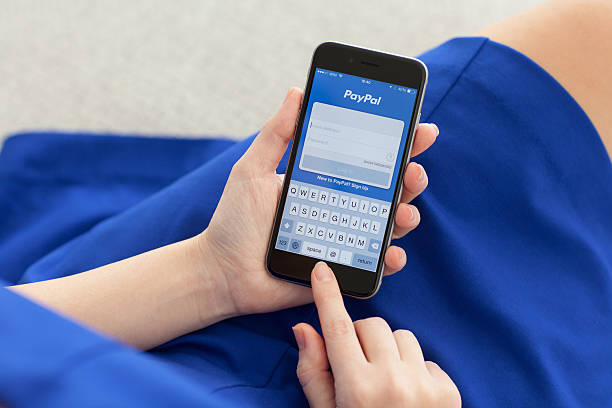
- Visit the PayPal website and log in to your account.
- Navigate to your wallet.
- Click on the “Link a credit or debit card” option.
- Select “Link a card manually” from the two options displayed.
- Enter your Visa gift card number, PIN, and expiry date.
- Tap on the “Link Card” button.
- Follow the remaining prompts to complete the process.
- How To Link Your Visa Gift Card Using The PayPal App
- Sign in to your PayPal app and click on Wallet.
- Click on the + sign beside “Add Banks and Cards”.
- Select “Debit and Credit Cards” among the options.
- Scan your Visa gift card or manually enter the details.
- Click on “Link Card” and complete the prompts.
Things To Note When Adding Your Visa Gift Card To PayPal
The things to note when adding your Visa gift card to a PayPal account include the card’s activation status, currency conversion fee, and the card’s verification fee.
1. The Card’s Activation Status
If you don’t know, your Visa gift card must be activated before you can add it to your PayPal account. This basically enables PayPal to authenticate that the card is genuine. This means that if your Visa gift card isn’t activated and you’re trying to add it to a PayPal wallet, you’ll meet a dead end.
2. Currency Conversion Fee:
Another thing you should know is that adding your Visa gift card to a PayPal wallet comes at a cost. If you use PayPal to make a transaction in a currency other than the currency of your Visa gift card, you’ll pay the currency conversion fee, which is usually 3% of the transaction amount.
3. Card’s Verification Fee:
PayPal usually charges a few dollars or even cents to verify your Visa gift card. There’s no cause for alarm. You’ll get a refund in a few days. If you don’t get refunded after 30 days, contact the Visa gift card customer support.
How to add a Vanilla Visa gift card to PayPal.
The process of adding a Vanilla Visa gift card to PayPal is similar to the process of linking a standard Visa gift card, but there are differences. There are a few additional considerations to ensure a smooth and successful process. Follow these steps to link your Vanilla Visa card to PayPal and begin using it for transactions:
Step 1: Activate your Vanilla Visa gift card
Adding a Vanilla Visa gift card to PayPal requires that it be activated. While most cards are activated at the time of purchase, others require manual activation. To complete the activation process, check the activation instructions on the card packaging or visit the card issuer’s website.
Step 2: Register a billing address for the card
Registering a billing address for your Vanilla Visa card is crucial to prevent declines during verification. To register a billing address:
- Go to the official Vanilla Visa website printed on the card.
- Input your card details (card number, expiration date, and CVV).
- Follow the steps to add your name and billing address.
Step 3: Log in to your PayPal account
Log in to your PayPal account by visiting PayPal.com or opening the PayPal app and inputting your registered email and password. If you don’t have a PayPal account, click on the signup options and follow the prompts. Once logged in on the app or web browser, locate the “Wallet” icon and open it. The “Wallet” option is at the bottom of the main menu screen on the PayPal app.
Step 4: Link your Vanilla Visa gift card
Click on “Link a card” or “Add a card,” then select “Debit or credit card” as the card type. Input all the details of the Vanilla Visa gift card, such as:
- 16-digit card number
- Expiration date
- CVV code (as seen on the back of the card)
- Billing address
- Then click on “Link card” or “save card” to continue.
Step 5: Verify the card
Verify the card by paying a small authorization fee (e.g., $1) to confirm its validity. This charge is required by PayPal, and once verified, the authorization amount will be refunded automatically within a few days. Check your Visa gift card balance or transaction history for a 4-digit code to confirm this charge.
Step 6: Use the Vanilla Visa gift card for PayPal payment
After successfully linking your card, you can set it as your default payment method for PayPal transactions by navigating to the “Wallet” tab, selecting the card, and choosing “Set as preferred.”If the card still fails to link with PayPal, contact Vanilla Visa customer support for resolution.
How to add a Visa gift card to the balance.
PayPal does not allow direct transfer of funds from a Visa gift card to a PayPal balance; however, you can still choose a Visa gift card as a payment method for PayPal transactions or use indirect workarounds to make the card’s balance available within PayPal.
Here is a step-by-step guide explaining how to go about it:
Step 1: Link the Visa gift card to your PayPal account
The first step to adding a Visa gift card to your PayPal balance is to link the gift card with the following:
- Activate the Visa gift card by visiting the website or following the instructions on the card packaging to activate the card
- Add the gift card to PayPal by logging in to the PayPal platform, clicking the wallet icon, and selecting “Link a card.” Input your gift card details (16-digit card number, expiration date, and CVV code), then verify the card with a refundable fee, which costs around $1.
Step 2: Choose the Visa Gift Card as a funding source for PayPal payments
Visa gift cards can be used for purchases, even though direct transfers to the PayPal wallet are not accepted. A perfect walkthrough is to select the gift card as a funding source during transactions:
When making a purchase online, select PayPal as your payment method. At checkout, choose the linked Visa gift card as the payment source. PayPal will charge the card balance directly for the transaction.
Step 3. Transfer funds indirectly to your PayPal balance
To convert a Visa gift card balance to a PayPal wallet, a direct transfer to a PayPal account is not accepted by PayPal. However, you can use these walkarounds:
Method 1: Send money to a friend or secondary PayPal account.
Log in to your PayPal account, click on the “send money” icon, and enter the recipient’s email. Select the Visa gift card as the source of funding, then send funds. Afterward, ask the recipient to send the funds back to you.
Note: PayPal may charge a small fee for sending personal payments.
Method 2: Purchase a PayPal gift card
You can use your Visa gift card to purchase a PayPal gift card from a trusted vendor, after which you redeem the PayPal gift card to add value directly to your PayPal balance.
Transferring funds from a Visa gift card directly to your PayPal balance can be tough because PayPal does not always allow direct transfers from gift cards. But these alternative methods can be used to add funds from your Visa gift card to your PayPal balance.
Tips to Note When Adding a Visa Gift Card to PayPal
- You can make payments without signing up for a PayPal account. The platform allows non-account holders to pay for goods and services via its portal with debit or credit cards. To do so, simply add your card details and proceed.
- Adding a Visa gift card to PayPal without having a PayPal account will incur a relatively heavy fee.
- You may encounter some issues while trying to use your gift card. This is because it cannot be identified like credit or debit cards with your personal information. If this happens, register your gift card with Visa by entering your name and address.
- Suppose you do not choose a primary payment mode and have multiple, such as a credit/debit card, a gift card, a bank account, and a PayPal balance. In that case, PayPal can decide to use the one with the highest balance for any payment you initiate.
- PayPal will charge a $1 fee to your card to verify if it is a viable payment option. It will refund the money after a few minutes to 30 days. You may contact the Customer Support team to file a complaint if it isn’t
Troubleshooting Common Issues
Adding a Visa gift card to PayPal can sometimes encounter hiccups. Here’s how to address common problems:
Card Declined or Not Accepted
- Check the Balance: Ensure your card has sufficient funds.
- Billing Address: Make sure you entered the correct billing address. Some cards require you to register an address.
- Card Activation: Confirm that your card is activated and ready for online transactions.
Card Not Linking
- Wait a While: Sometimes, waiting a few hours and trying again can resolve the issue.
- Contact PayPal Support: If you continue to have trouble, contact PayPal customer support for assistance.
Tips for Managing Your Visa Gift Card on PayPal
Once your Visa gift card is successfully added to PayPal, here are some tips for managing it:
- Monitor Your Balance: Regularly check your gift card balance to ensure you have enough funds for upcoming purchases.
- Use for Small Transactions: To avoid having a small remaining balance that’s difficult to spend, use your card for smaller transactions.
- Combine with Other Payment Methods: If your gift card balance isn’t enough to cover a purchase, PayPal allows you to combine it with another payment method.
Conclusion
Visa gift cards are universal prepaid cards you can use to make online payments. Adding a Visa card to your gift card is beneficial because it allows you to use PayPal with external funding. It’s also a way to safeguard your money if you lose your gift card or its details. Whether you’re looking to shop online, manage a leftover balance, or simply make checkout faster, adding your Visa gift card to PayPal is a smart move. With this guide, you can use your Visa gift card with PayPal stress-free.
FAQ
- How do I add a vanilla gift card to PayPal?
Many people want to connect these cards to PayPal for easier and safer payments, and yes, you can add a Vanilla Gift Card to PayPal. To do it, just log in to your PayPal account, go to your Wallet, and choose to link a new card.
- How to redeem a gift card via PayPal?
Enter your email and gift card code and click Redeem Now. Select the wallet you want the gift card balance to be applied to. Enjoy your top-up!
- Does PayPal accept any gift cards?
Yes. Anywhere in the U.S. where PayPal is accepted, you can use prepaid gift cards that have a Visa®, MasterCard®, American Express®, or Discover® logo on them. Please note that this doesn’t apply to merchant-specific gift cards, which do not have a Visa®, MasterCard®, American Express®, or Discover® logo on them.
- Can I transfer a prepaid card to PayPal?
It is generally not possible to transfer money directly from a prepaid card to a PayPal Balance. However, individuals may be able to link their prepaid card to their PayPal account and use it to make payments, depending on the card issuer.
- Can I buy an Amazon gift card with PayPal?
Buy an Amazon Gift Card Online with PayPal and more! Buy an Amazon Gift Card online and get the most out of Amazon’s huge catalog of digital and physical goods. Pay with PayPal, Apple Pay, Phone Credit, or any of our other 15+ secure payment methods.