
What Is An Apple ID?
An Apple ID is an authentication method used by Apple devices and services such as iPhone, Mac, iPad, iCloud, App Store, and iTunes Store. This is an account you use to access all Apple devices and make all your devices function together. You can use an Apple ID to save data to iCloud, download and purchase apps, games, and movies, as well as sync files across devices. For instance, you need an Apple ID to use Apple Pay to send money or even use your Apple gift card effectively on your device if you are a gift card user.
How to Get an Apple ID on Your Apple Device
Now that we’ve sorted out what an Apple ID is, it’s time to get yours. Whether you’re using an iPhone, iPad, or Mac, setting up your Apple ID is pretty straightforward. Let’s break it down step by step so you can stop staring at that “Sign in to your device” prompt and start enjoying all the features Apple has to offer.
How to Create a New Apple Account on iPhone and iPad
Open Settings, tap “Sign in to your iPhone”, then select “Don’t Have an Account”. And tap “Create Apple ID”. Enter your name, birthday, and email. Verify your email with the code Apple sends, set a strong password, and agree to the terms. Your Apple ID is now active.
- Open Settings and tap on “Sign in to your iPhone” (or iPad) at the top.
- Next, tap “Don’t Have an Account.”
- Then, select “Create Apple ID.” You’ll need to enter your name, birthday, and email address. You can use any email—Gmail, Yahoo, or whatever you prefer.
- After that, Apple will send a verification code to the email you provided. Enter that code to verify.
- Once your email is verified, you’ll need to set a strong password for your Apple ID. Make sure it’s something you can remember (because recovering it can be a pain).
- Lastly, agree to Apple’s Terms and Conditions. Yeah, I know, no one reads them—but just go ahead and accept it.
- And just like that, you’ve got yourself a new Apple ID on your iPhone or iPad. Now, you’re ready to sync everything up and start using your device to the fullest.
How to Create a New Apple Account on Mac
Click the Apple logo, go to System Settings, and choose “Sign in with your Apple Account”. Select “Create Apple ID”, enter your details, and verify your email. Set a password, agree to the terms, and your Apple ID will be active.
- On your Mac, click the Apple logo in the top-left corner of your screen and go to System Settings.
- Once there, click “Sign in with your Apple Account.”
- Then choose “Don’t Have an Account.” You’ll enter the usual details—name, birthday, and email address. Just like on iPhone, you can use any email you already have.
- After that, Apple will send you a verification code via email. Enter the code to confirm.
- Next, create a strong password for your Apple ID.
- Once that’s done, agree to the Terms and Conditions, and you’re all set!
- Your Apple ID is now active on your Mac, and you can start using Apple services right away.
How to Create a New Apple ID on Android
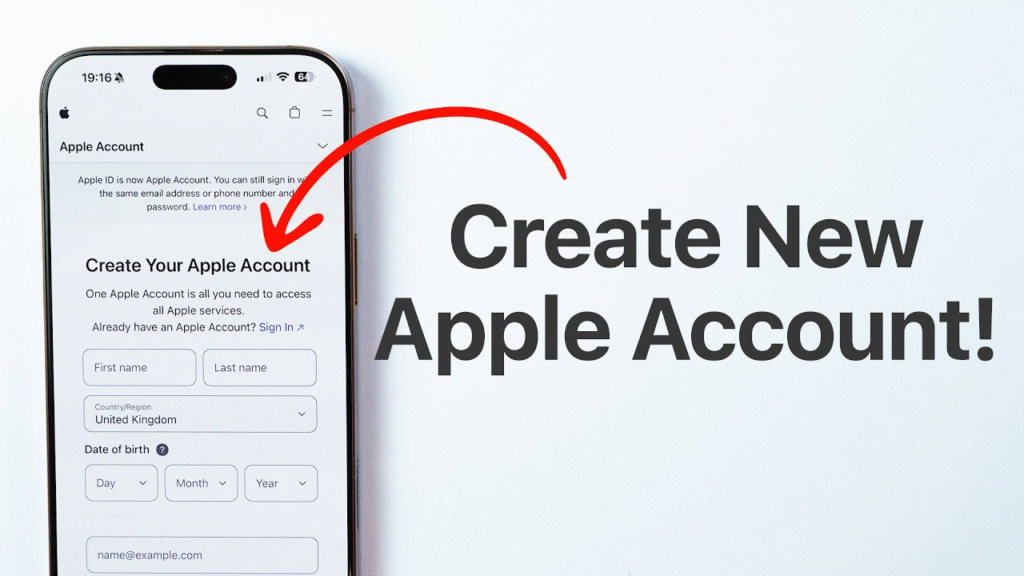
It might sound surprising, but you can actually create an Apple ID on an Android device. Simply open your browser and go to appleid.apple.com. Tap “Create Your Apple Account” and enter your name, birthday, and email. Set a strong password, then verify your account via the code sent to your email. After verification, answer the security questions, agree to the Terms and Conditions, and your new Apple Account is ready.
- Open your web browser (Chrome, Opera, whatever you’re using) and head over to appleid.apple.com.
- Once the page loads, tap on “Create Your Apple Account”. You’ll be asked to fill in the usual details: your first name, last name, birthday, and email. You can use any email you have (Gmail, Yahoo, or others) to sign up.
- Set a strong password. Make sure it’s something secure and memorable.
- Apple will send a verification code to the email address you used. Check your inbox, grab the code, and enter it to verify your account.
- Once your email is verified, you’ll need to answer some security questions (just in case you need to recover your account later).
- Agree to Apple’s Terms and Conditions, and that’s it—you now have a new Apple ID.
Even though you’re creating this on an Android device, your Apple ID will work perfectly across all Apple products, including iPhones, iPads, and Macs. So, if you’re planning on making the jump to the Apple ecosystem soon, this sets you up nicely.
How to Change or Reset Your Apple ID Password
Forgot your Apple ID password? Or maybe you’re just looking to update it for security reasons. Either way, changing or resetting your Apple ID password is quick and easy. To change your password, simply open Settings, tap your name at the top, go to Password & Security, and choose Change Password. Enter your current password, set a new one, and you’re all set. If you need to reset it, tap “Forgot Apple ID or Password?” Follow the steps, verify your identity, and create a new password.
- How to Change Your Apple Account Password:
- Open Settings on your iPhone or iPad and tap your name at the top to access your Apple ID settings.
- Tap Sign-in & Security.
- Tap Change Password. You’ll be asked to enter your current password.
- Now, type in your new password.
- Hit Change, and you’re done!
- Your new password is set, and you can use it to log in across all your Apple devices.
- How to Reset Your Apple Account Password:
- Open Settings on your iPhone, iPad, or go to appleid.apple.com on a browser if you’re using a different device.
- Tap or click Forgot Apple ID or Password?
- Enter your Apple ID (usually your email) and follow the prompts.
- Apple will either send a verification code to your trusted phone number or email. Enter the code to confirm your identity.
- Once verified, you’ll be asked to create a new password. Make sure it’s strong—combining letters, numbers, and symbols.
- Click Change Password.
How to create an Apple ID on another device.
- Go to the Apple ID support page in a web browser.
- Click Create Your Apple ID.
- Fill out the requested information
- Solve the captcha.
- Click Continue and follow the on-screen steps to verify both your phone number and email address. Once this is complete, you can log in to your Apple ID.
Conclusion
Creating a new Apple ID is essential if you want to unlock the full power of your Apple device. Whether you’re using an iPhone, iPad, or Mac, your Apple ID gives you access to apps, iCloud storage, Apple Music, and all the other great features Apple offers. The best part? Setting one up is easy, and you can even do it from an Android device. So go ahead, create that Apple ID, and enjoy the seamless experience across all your devices.
FAQ
- How to create a new Apple ID?
Create your Apple Account using the App Store on your device. Open the App Store and tap the My Account button. Tap Create New Apple Account. If you can’t see this option, make sure you’ve signed out of iCloud. Enter your payment method and billing information, then tap Next.
- Why won’t Apple let me create a new Apple ID?
These include: Apple’s servers being temporarily down or experiencing issues, Incorrect network settings or Wi-Fi problems, your Apple ID being locked or associated with another account Outdated iOS version or software bugs Region or country-specific restrictions on Apple ID creation.
- Can I make two Apple ID accounts?
For example, you may have a personal Apple ID that you use with the App Store and iCloud but a different Apple ID for work purposes where you store your business or work contacts. You can set up two or more Apple IDs on an iPhone and iPad
- Can I make two Apple ID accounts?
For example, you may have a personal Apple ID that you use with the App Store and iCloud but a different Apple ID for work purposes where you store your business or work contacts. You can set up two or more Apple IDs on an iPhone and iPad.
- Can I create my own Apple ID for free?
Create your Apple Account when you set up your device. Tap “Forgot password or don’t have an Apple Account?” Tap Create a Free Apple Account.