
What is an Apple Wallet?,

Apple Wallet is a built-in app on iPhones that lets you store digital versions of things you’d normally carry in your physical wallet. That includes credit and debit cards, boarding passes, event tickets, student IDs, and gift cards. Once something is added to Apple Wallet, it’s easy to use. Instead of digging through your bag or pockets, you can access everything with just a tap on your phone.
How to Check if Your Gift Card and Device are Compatible with Apple Wallet
Not all gift cards work with Apple Wallet, and some older Apple devices might not support the feature fully. Here’s how you can check:
- First, check your device. Apple Wallet works on iPhones running iOS 6 or later, but for full functionality, including Apple Pay, you’ll want iOS 11 or newer. You can confirm this by going to Settings > General > About and looking at your iOS version.
- Next, check the gift card itself or its packaging for any mention of Apple Wallet compatibility. If there’s no information on that, visit the retailer’s website or contact their customer support to see if they support Apple Wallet integration.
Benefits of Adding Gift Cards to Apple Wallet
1. Security
Apple Wallet is secure. Your gift cards are safe when stored there. The app uses a strong security protocol on the iPhone to protect all your payment and non-payment cards.
2. Versatility.
Apple Wallet is one of the few digital wallets supporting all types of digital passes.
3. Easy Access.
It provides easy access to all your digital passes. You don’t have to use separate apps for the cards, tickets, and passes. It’s a one-stop app for all your cards, payments, and non-payments.
4. Zero fees.
There are fees for use. Other apps charge subscription fees for certain features. But with Apple Wallet, you get all these at no cost. The most glaring advantage of Apple Wallet is the convenience of having all your gift cards ready to use with one tap.
How to Add a Gift Card to Apple Wallet
There are different ways to add a gift card to an Apple Wallet. They are:
- Using the Apple Wallet directly
- Through the gift card provider
Method 1: Adding Directly Through Apple Wallet
If your gift card comes with a barcode or QR code, you might be able to add it directly through the Wallet app. Here’s how to do it:
Step 1: Open the Apple Wallet App
On your iPhone or iPad, locate and open the Apple Wallet app. It’s a pre-installed app that comes with all iPhones, so you won’t need to download anything.
Step 2: Tap the “+” Icon
In the top-right corner of the screen, tap the plus (+) icon. This will bring up a menu where you can add different types of passes and cards.
Step 3: Select “Add a Debit Card”
Choose the option labeled “Debit or Credit Card”.
Step 4: Scan the Barcode
Use your iPhone’s camera to scan the gift card’s barcode or QR code. If the Wallet app recognizes the format and the card is compatible, it will prompt you to add it.
Alternatively, you can tap “Enter Code Manually” to input the card number and any required info.
Step 5: Tap “Add” to Confirm
After scanning or entering the gift card details, tap “Add” in the top right corner. Your Apple Wallet gift card will now be saved and ready to use.
Method 2: Using the Gift Card Provider’s App or Website
Many gift cards can be added to Apple Wallet through the retailer’s official app or website.
Step 1: Open the Retailer’s App or Website
Open the app or website and log in to your account.
Step 2: Tap “Add to Apple Wallet”
Look for an option like “Add to Apple Wallet” or “Save to Wallet” and click it.
Step 3: Verify your Apple ID
You may be prompted to verify details like your Apple ID or passcode.
Step 4: Confirm and Add the Card
After verifying, your iPhone will preview the card details before finalizing. Tap “Add” in the top-right corner to confirm. A digital version of the gift card will be created in your Apple Wallet app.
How to Manage and Use Gift Cards in Apple Wallet
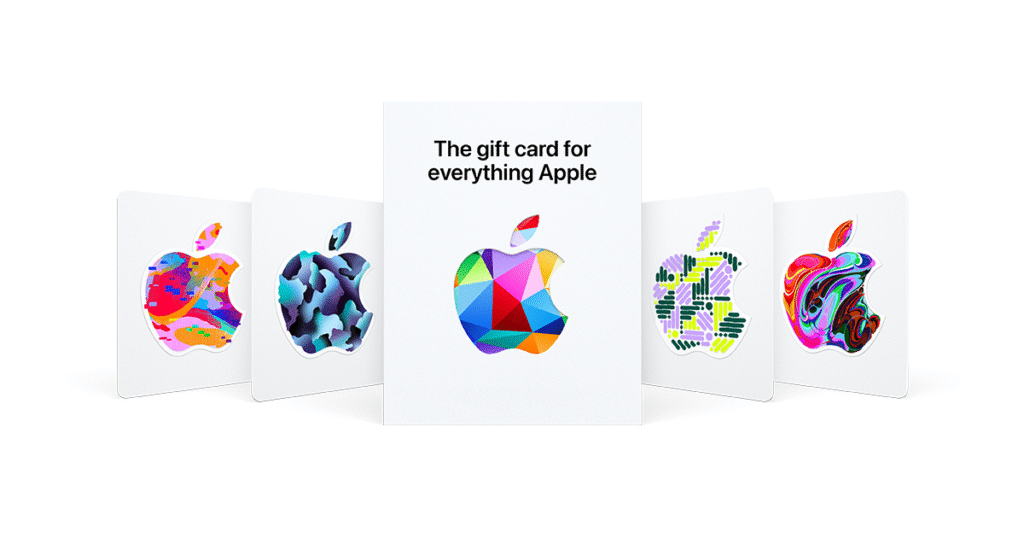
Once you’ve added a gift card to Apple Wallet, using and keeping track of it is simple. Everything you need is built right into your iPhone, so your gift cards are always just a tap away.
- To Access and Use a Gift Card
You can quickly find any card by typing the card’s name in the search bar. Once you find the gift card you want to use, click it, and present the QR code at checkout. If the store accepts Apple Wallet gift cards, the cashier can scan them right from your screen. For online purchases, select Apple Pay from the checkout options.
- To Check Gift Card Details
Most digital gift cards in Apple Wallet will display useful info like your remaining balance or transaction history, depending on the card provider. Just tap the three-dot icon (•••) on the card to see more details.
- To Remove or Reorganize Cards
You can manage your cards by scrolling to the bottom of the Wallet app and tapping “Edit Passes,” or holding your finger on a card to drag it into a different order. To delete a gift card, tap the three-dot icon on the card and select “Remove Pass.”
How to Check If Your Device Supports Apple Wallet
Before you try to add your gift card to your Wallet, your iOS device must support this feature. Here is how you can check:
1. Device Compatibility
You can check if your device is compatible by checking the device specifications or visiting Apple’s official website to confirm if your specific device model supports Apple Wallet.
2. iOS version
If you want to verify if your device is running on a compatible iOS version, you can check with these steps: Go to your device’s settings, scroll down, and tap on “General,” tap on “About,” then look for the “software version” or “iOS version” entry to see which version your device is currently running. If your device meets both requirements, you can proceed with adding your gift cards to your wallet. However, if your device is not compatible, you may need to consider alternative options or upgrade your device for access to Apple Wallet.
Tips For Using Apple Wallet for Gift Cards
You’ll never want to return to using physical cards and passes as soon as you begin using Apple Wallet. So to ensure you make the most of it, here are a few tips that will be useful.
- If your iPhone uses Face ID, you can quickly access your Wallet by double-clicking the side button. If your iPhone has a home button, double-click to access your Wallet.
- You can easily add your gift cards by opening the wallet and tapping the + sign.
- Maximise your iPhone’s security to keep your cards safe.
Common Issues When Adding Gift Cards to Apple Wallet
Even though adding a gift card to Apple Wallet is usually straightforward, you might run into a hiccup or two. Here are some quick fixes for common problems:
1. Card not scanning?
Make sure you’re in a well-lit area and the barcode or QR code on the gift card is clean and undamaged. Try tilting your phone slightly or adjusting the distance from the scanner.
2. Store app not showing “Add to Apple Wallet” option?
Check that you’re using the most recent version of the app by going to the App Store and updating it, if needed. Also, remember, not all gift card providers support Apple Wallet, so it’s worth checking their support page too.
3. Gift card not showing up in Wallet after adding?
Restart your iPhone and check again. Also, confirm that you’re signed in to the correct Apple ID and that the Wallet app has access in your settings.
4. iPhone says the pass isn’t supported?
Some gift cards just aren’t Apple Wallet-compatible. In that case, you can still save the card info or screenshot in the Notes app, or use the retailer’s own app for storage and redemption.
5. Gift card balance not updating?
Not all gift cards update balances automatically in Apple Wallet. For real-time updates, you may need to use the retailer’s app or website to check your remaining amount.
Conclusion
Adding gift cards to Apple Wallet is a simple way to keep your gift cards organized, alongside other digital passes like credit cards, tickets, and boarding passes. The app is fast, secure, and easy to use. Now that you know how to add, manage, and use gift cards in Apple Wallet, you’re all set to make the most of your digital wallet. So, go ahead and start loading up your cards.
FAQ
- Can I put gift cards on my Apple Wallet?
In today’s fast-paced world, digital wallets have become indispensable tools for managing our finances and purchases seamlessly. By choosing to add a gift card to Apple Wallet, you’re embracing convenience and efficiency, ensuring that your gift cards are always at your fingertips.
- How do I add a gift card to Apple Cash?
You can’t add money from a gift card, even if it’s already in Wallet. You can choose to direct Daily Cash to a Savings account or to an Apple Cash account. If you do not have either set up to receive your Daily Cash, it can be applied as a statement credit upon request.
- Can I convert a gift card to Apple Pay?
Meanwhile, Apple Pay allows you to make safe purchases on Apple Store and Apple.com. The truth is, you can’t directly add an Apple gift card to an Apple wallet except for other gift cards like Visa and Mastercard; the option you have is to redeem your Apple gift card to your Apple account.
- Can I add any cards to my Apple Wallet?
You can add an eligible card from a participating card issuer. Many major credit and debit cards from banks and credit unions are supported. You can check with your card issuer or try adding your card to see if it’s accepted. Go to the Wallet app on your iPhone.
- Can you use a gift card as a payment method on APPLE?
In countries and regions where Apple Gift Card is available, you can use your Apple Gift Card or Apple Account balance to buy products and accessories at Apple.com, an Apple Store, or in the Apple Store app.
- Can I redeem gift cards for an Apple balance?
You can redeem a gift card on your device to add funds to your Apple Account balance.