
How to Add Visa Gift Cards on Amazon
Learning how to add Visa gift cards on Amazon is a simple way to fund your purchases without using your bank card directly. Amazon treats Visa gift cards like regular debit cards, so once you enter the card details and confirm the balance, you can use it for everything from small checkouts to topping up your Amazon balance. And if you ever need to convert unused Visa gift cards to cash, trade digital cards safely, or get fast payouts, platforms like Xbanka make the process even easier and more secure. It’s a smooth way to get full value from your cards, whether you’re spending them on Amazon or cashing out.
How to Add a Visa Gift Card to Your Amazon Account
Understanding how to add a Visa gift card to your Amazon account helps you use the card just like a regular payment method. Amazon accepts most prepaid Visa cards, but you need the correct balance and card details for it to go through. Once you add it successfully, you can use it instantly at checkout. And if you’d rather convert the Visa card to cash instead of spending it, Xbanka gives you a fast and secure way to trade your cards without stress.
Step-by-Step Guide on How to Add a Visa Gift Card to Amazon
Before learning how to add your Visa gift card on Amazon, the first step is confirming the exact balance.
● Check Balance & Register: Visit the gift card’s website (usually on the back) to check the balance and register it with your name and billing address to avoid declines.
● Go to Account Settings: Log in to Amazon.com and navigate to “Accounts & Lists,” then “Your Account”.
● Find Payment Settings: Click on “Your Payments” under the “Payment methods” section.
● Add New Card: Select “Add a payment method,” then “Add a credit or debit card”.
● Enter Details: Input the Visa gift card’s number, expiration date, security code (CVV), and the name/address you registered it with.
● Confirm: Click “Add your card” or “Add card and continue”.
Troubleshooting Common Decline Issues
A big part of understanding how to add Visa gift cards on Amazon is knowing how to fix the small issues that cause declines. These include insufficient balance, temporary holds, incorrect ZIP code entries, or Amazon not recognizing the card as a payment source. Trying the card at checkout instead of adding it to your wallet sometimes works too. And if the card simply won’t work on Amazon at all, Xbanka is a reliable alternative to get your money out quickly.
How to Use Your Visa Gift Card for Purchases on Amazon
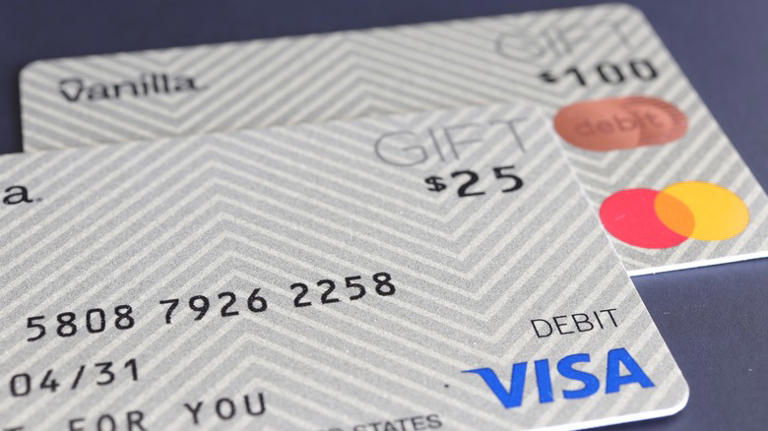
Once you understand how to use a Visa gift card on Amazon, you can treat it like any regular debit card during checkout. Amazon allows prepaid Visa cards as long as the balance covers the purchase or you combine it with another payment method. Using it correctly helps you avoid declines and makes the checkout process smooth. If you ever prefer converting the gift card instead of using it on Amazon, Xbanka offers an alternative way to redeem its value.
Using the Card at Checkout
To use your Visa gift card at checkout, simply select it from your saved payment methods or enter the card details directly at the payment stage. Amazon will charge the exact balance available on the card, so ensure the cost of the item does not exceed the card’s balance. If the card is not added to your account before checkout, entering the details manually can help process the payment faster.
Combining a Visa Gift Card With Other Payment Methods
If the Visa gift card balance is lower than the total cost of your order, Amazon allows you to combine the gift card with another payment method. You can apply the remaining balance of the Visa card first and then pay the balance using your debit card, credit card, or Amazon balance. This way, you can use the full value of the Visa card without leaving money unused.
What to Do If Amazon Declines Your Visa Gift Card
If Amazon declines your Visa gift card, the issue is usually related to an insufficient balance, an incorrect billing address, or temporary card restrictions. Recheck the balance and ensure all card details match what Amazon requires. You can also try using the card from the checkout page instead of adding it to your wallet. If the card still fails repeatedly, you may consider redeeming or converting it through a platform like Xbanka.
Conclusion
Knowing how to add Visa gift cards on Amazon makes online shopping simple and convenient. By following the correct steps and understanding how to add your card properly, you ensure that the card works smoothly without declines. Once added, you can use the gift card for purchases directly at checkout or combine it with other payment methods for larger orders. And if the card doesn’t work on Amazon, platforms like Xbanka provide a reliable way to redeem or convert the card’s value, making sure you can access your funds anytime.
FAQs
Q1: Can I add multiple Visa gift cards to my Amazon account?
Yes, you can add more than one card. If the first card doesn’t cover the full purchase, Amazon allows you to combine multiple cards or other payment methods.
Q2: Why is my Visa gift card being declined on Amazon?
Common reasons include insufficient balance, incorrect billing address, temporary card restrictions, or Amazon not recognizing prepaid cards. Verify details and try again, or consider redeeming through Xbanka.
Q3: Can I use a Visa gift card for digital purchases on Amazon?
Yes, the card works for both physical and digital purchases as long as the balance is sufficient.