
How to Link NIN to MTN via SMS

Linking your National Identification Number (NIN) to your MTN SIM is essential for compliance with the Nigerian Communications Commission (NCC) regulations. This ensures your line remains active and secure. In this guide, we’ll break down exactly how to link NIN to MTN via SMS step by step, including rules, tips, and troubleshooting.
Why You Need to Link NIN to Your MTN Line
Linking your NIN is not just a legal requirement, it also safeguards your mobile line against fraud and unauthorized usage. With your NIN linked, MTN can verify your identity and prevent SIM-related scams.
- NCC mandates all SIM owners to link NIN to their mobile numbers.
- Failure to link may result in deactivation of your line.
- It enhances security for mobile banking, data services, and communication.
How to Link NIN to MTN via SMS
MTN provides a simple SMS method to link your NIN to your SIM without visiting a physical store. Follow these steps carefully.
Step 1: Prepare Your Details
Before sending an SMS, ensure you have the following:
- Your valid National Identification Number (NIN).
- The phone number you want to link.
- Sufficient airtime for sending the SMS (usually free for NIN linking).
Step 2: Compose the SMS
To link your NIN to MTN via SMS:
- Open your messaging app.
- Type the following message format:
NIN (space) your NIN number
Example:
NIN 12345678901
- Send the SMS to 346.
Step 3: Wait for Confirmation
After sending, you will receive a response from MTN confirming whether your NIN has been successfully linked. This usually takes a few minutes to 24 hours depending on network traffic.
Tips:
- Double-check your NIN before sending to avoid errors.
- Ensure you send the SMS from the line you want to link.
Rules and Limits for Linking NIN to MTN via SMS
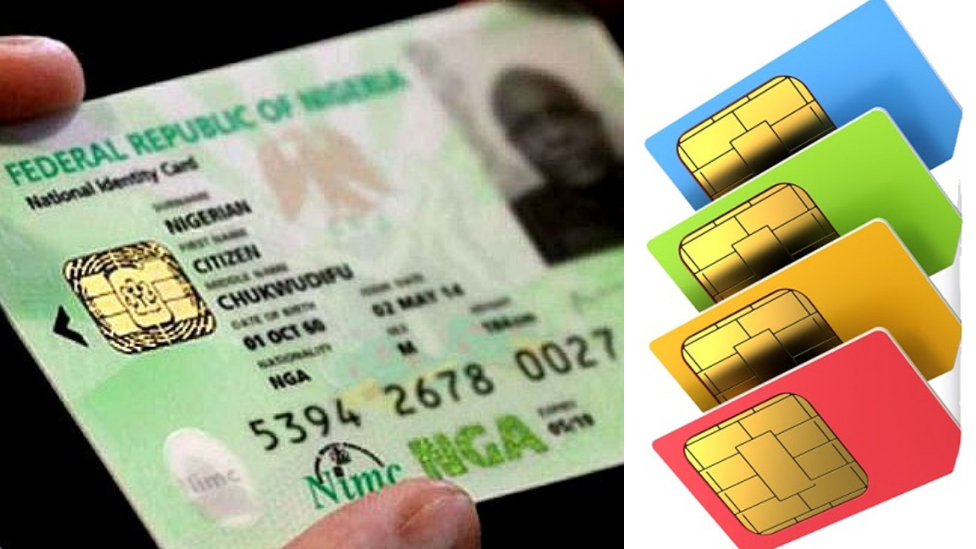
Understanding the rules helps avoid delays or failed attempts.
- Only valid and active NINs are accepted.
- Each MTN line can only link one NIN.
- NIN must match the details registered with the MTN SIM.
- SMS linking is free, but network charges may apply in rare cases.
- If your line is already registered with another NIN, it will be rejected.
Troubleshooting NIN Linking via SMS
If your attempt to link your NIN to your MTN line via SMS fails, there are a few common issues to check. First, ensure your NIN is correct and complete; an invalid NIN will be rejected. Make sure you are sending the SMS from the MTN line you want to link and that you have adequate network coverage. If you don’t receive a confirmation within 24 hours, try sending the SMS again or contact MTN customer care at 180. Persistent issues may require visiting an MTN service center for assistance.
If you encounter issues, here’s what you can do:
Common Problems
- Invalid NIN message: Check if your NIN is correct and complete.
- SMS not sent: Ensure you have network coverage and sufficient airtime.
- No response from MTN: Wait for up to 24 hours, then try again or contact MTN support.
Contacting MTN Support
- Call MTN customer care at 180 for assistance.
- Visit any MTN service center if the SMS method fails.
Conclusion
Linking your NIN to your MTN line via SMS is quick, easy, and essential for compliance with NCC regulations. By following the steps outlined above, you can secure your line and avoid disconnection. Remember, sending “NIN ” to 346 is all it takes to complete the process.
FAQs
Q1: Is linking NIN to MTN via SMS free?
Yes, sending the SMS to 346 is free of charge.
Q2: Can I link multiple MTN lines with one NIN?
No, each NIN can only be linked to one line at a time.
Q3: How long does it take to link NIN to MTN via SMS?
It usually takes a few minutes, but in some cases up to 24 hours.
Q4: Can I link my NIN online instead of SMS?
Yes, MTN also allows NIN linking via the MyMTN app or USSD code (*785#).