
Apple Gift Card Tutorial for Beginners
Received an Apple gift card but don’t know how to use it? You’re not alone. Many new Apple users feel confused about how to redeem and spend these digital vouchers. This complete beginner-friendly walkthrough will show you exactly how to activate your Apple gift card and make the most of your balance.
Introduction: Understanding Apple Gift Cards
Apple gift card is a versatile digital vouchers that can be used across Apple’s ecosystem of products and services. Whether you received a physical card or a digital code via email, the redemption process is straightforward once you know the steps.
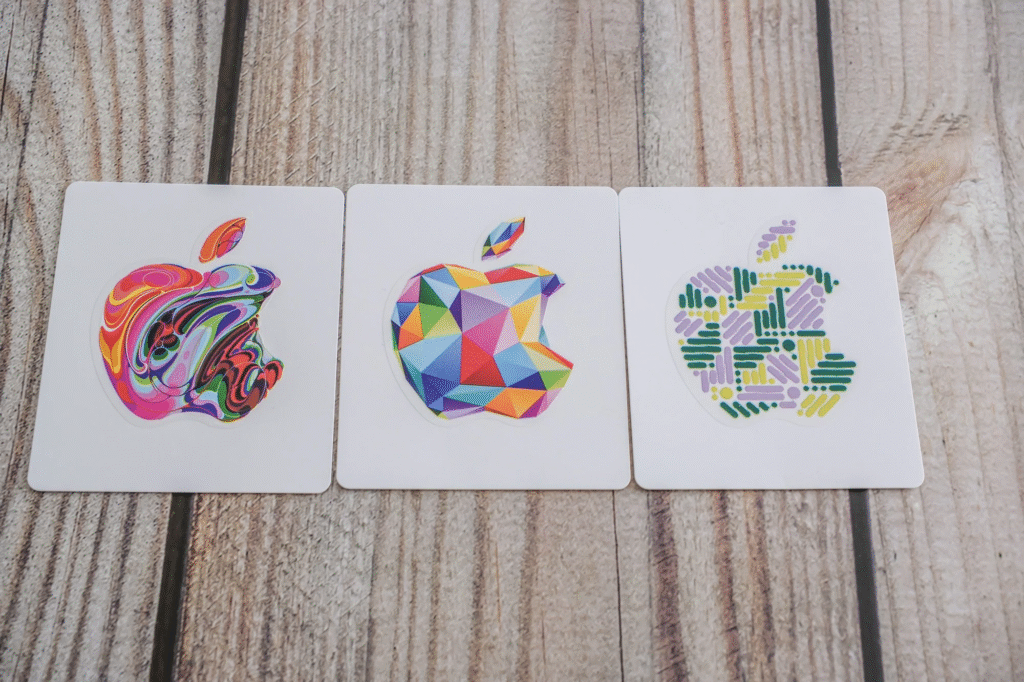
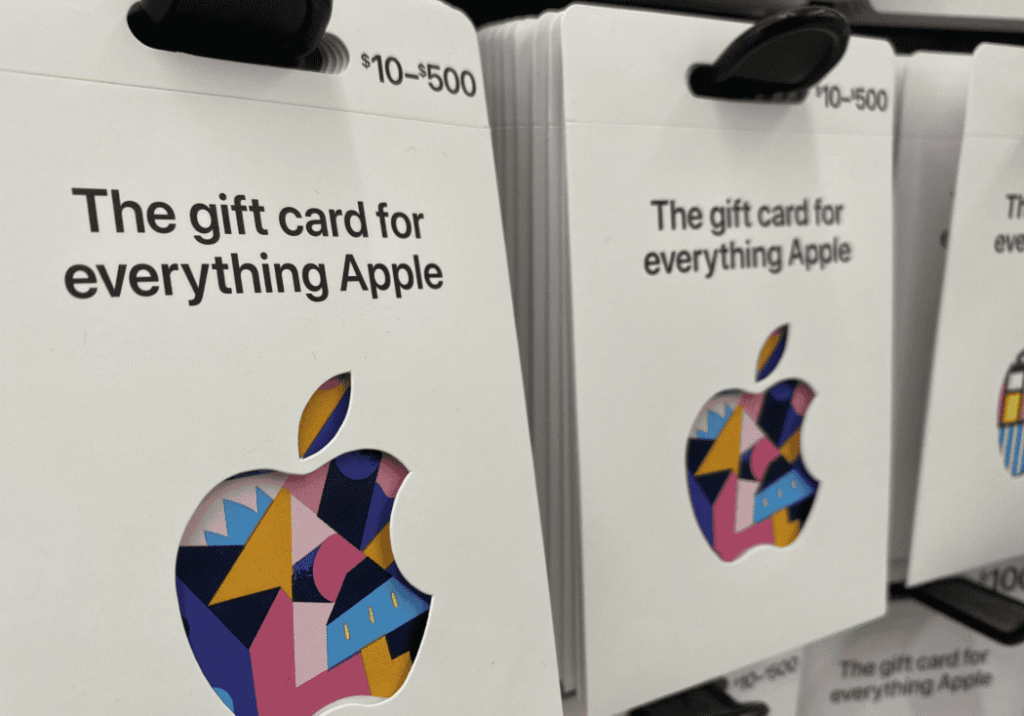
The Modern Apple gift cards (introduced in 2020) combine the functionality of both App Store & iTunes cards and Apple Store cards, giving you flexibility in how you spend your balance. The card features a simple design with a redemption code on the back (physical cards) or within the email message (digital cards).
Before redeeming, make sure you’re signed in to your Apple ID on your device. This is crucial because your gift card balance will be added to your Apple Account balance, which is tied to your specific Apple ID.
How to Redeem Apple Gift Cards on iPhone, iPad, and Mac
Redeeming on iPhone or iPad
The easiest way to redeem your Apple gift card is through your iPhone or iPad. Start by opening the App Store application on your device. Look for your profile icon in the top-right corner and tap it to access your account settings.
Once in your account page, scroll down until you see the “Redeem Gift Card or Code” option. Tap this option to begin the redemption process. Your device will activate the camera, allowing you to scan the redemption code automatically.
Position your physical card so the redemption code is visible within the camera frame. The system will automatically detect and read the code. If you have a digital card or if the camera doesn’t work, tap “Enter Code Manually” and type in the 16-digit code found on your card.
After entering the code, tap “Redeem” in the upper-right corner. You may be prompted to sign in with your Apple ID password or use Face ID/Touch ID for authentication. Within seconds, your balance will be added to your account, and you’ll see a confirmation message showing the amount credited.
Redeeming on Mac
For Mac users, the process is similarly straightforward. Open the App Store application on your computer and click on your name or the sign-in button at the bottom of the sidebar.
In the account page, locate and click “Redeem Gift Card.” You’ll be presented with two options: use your Mac’s camera to scan the code or enter it manually. Select your preferred method.
If using the camera option, hold your physical card up to your Mac’s camera. The system will automatically capture and process the code. For manual entry, click “You can also enter your code manually” and type in the complete redemption code.
Click “Redeem” and authenticate with your Apple ID password when prompted. Your account balance will update immediately, and you’ll receive confirmation of the amount added.
Alternative Redemption Method
You can also redeem gift cards directly through the iTunes Store or Apple Music app on any device. The process mirrors the App Store method: access your account, find the redemption option, and either scan or manually enter your code.
For watchOS users, you can even redeem codes directly on your Apple Watch by opening the App Store on your wrist device and following similar steps.
What You Can and Cannot Buy with Apple Gift Cards
What You CAN Purchase
Your Apple gift card balance can be used for a wide variety of digital and physical purchases across Apple’s ecosystem. Understanding these options helps you maximize the value of your gift.
Digital Content: Your gift card covers all App Store purchases, including paid apps, in-app purchases, and app subscriptions. You can download games, productivity tools, or any paid application available in the App Store.
Apple Services: Your balance applies to Apple Music subscriptions, Apple TV+ subscriptions, Apple Arcade, Apple News+, Apple Fitness+, and iCloud+ storage plans. This makes gift cards an excellent way to try Apple’s service offerings without using a credit card.
Media Purchases: You can buy movies, TV shows, music, books, and audiobooks from the iTunes Store or Apple Books. Both rentals and purchases are covered by your gift card balance.
Physical Products: At Apple.com or Apple Store locations, you can use your gift card balance toward iPhones, iPads, MacBooks, Apple Watches, AirPods, accessories, and other Apple hardware. This is one of the most valuable uses of larger gift card amounts.
AppleCare+: Extended warranty and support plans for your Apple devices can be purchased using a gift card balance, providing valuable protection for your investments.
What You CANNOT Purchase
Certain Apple services and products have restrictions when it comes to gift card payments. Being aware of these limitations prevents confusion at checkout.
iTunes Match: This specific service for matching your music library cannot be paid for with a gift card balance.
Apple Pay Cash: You cannot transfer gift card balance to your Apple Pay Cash card for person-to-person payments or general merchant purchases.
Third-party Products: Items sold by third-party sellers on Apple’s website (in contrast to Apple-branded products) typically cannot be purchased with gift card balance.
Certain Subscriptions: While most Apple subscriptions work with gift cards, some enterprise or business-specific services may require credit card payment.
Previous Balances: Gift cards cannot be used to pay off existing balances or charges that were already billed to your payment method.
How Payments Work with Mixed Methods
When you make a purchase, Apple automatically uses your gift card balance first. If your balance doesn’t cover the full amount, the remaining charge goes to your primary payment method (credit card, debit card, or PayPal).
For subscription services, Apple will draw from your gift card balance each billing cycle. When your balance runs out, the subscription automatically charges your backup payment method, ensuring uninterrupted service.
You can check your current balance at any time by opening the App Store, tapping your profile icon, and viewing the balance displayed below your name.
Tips for Using Gift Cards During Apple Sales Events
Black Friday and Holiday Shopping
Apple rarely discounts its products directly, but authorized retailers often offer gift cards with purchase during major shopping events. If you’re planning a significant Apple purchase, timing it with Black Friday, Cyber Monday, or back-to-school promotions can earn you additional gift card value.
Redeem promotional gift cards immediately to avoid losing the physical card or forgetting about the code. Once redeemed, the balance never expires and remains safely in your account.
During holiday seasons, combine your existing gift card balance with sale prices on accessories like AirPods cases, charging cables, or Apple Watch bands to maximize your purchasing power.
App Store and iTunes Sales
Apple and app developers frequently offer limited-time discounts on apps, games, and in-app purchases. Set up notifications for your favorite apps or check the “Today” tab in the App Store regularly to catch these deals.
Major apps often go on sale during holidays, app anniversaries, or seasonal events. Using your gift card balance during these periods stretches your value significantly compared to regular pricing.
For movies and TV shows, iTunes regularly features weekend deals, 4K upgrade promotions, and seasonal collections at reduced prices. Browse the iTunes Store’s “Movies” and “TV Shows” tabs to find current offers.
Subscription Timing Strategies
If you’re planning to subscribe to Apple services, consider redeeming gift cards before starting free trials. This ensures you have sufficient balance to continue the service seamlessly when the trial ends.
Annual subscription plans for Apple Music, Apple TV+, and other services offer better value than monthly plans. If you have enough gift card balance, choosing annual billing saves approximately 15-20% compared to paying monthly.
Time your gift card redemption around subscription renewal dates. If your Apple Music subscription renews on the 15th of each month, redeeming a gift card a few days before ensures it’s available for the automatic charge.
Stacking Strategies for Maximum Value
Purchase discounted Apple gift cards from authorized retailers that occasionally offer 10-20% off face value. Combine these discounted cards with Apple’s own promotions for compound savings.
If you’re buying a new device, apply your gift card balance to the purchase and use a credit card offering cashback or rewards for the remaining amount. This gives you both the gift card value and credit card benefits.
For families using Family Sharing, each member’s gift card balance stays separate, but all members can access purchased apps and media. This allows strategic distribution of gift cards among family members based on who makes different types of purchases.
Avoiding Common Mistakes
Never purchase Apple gift cards as payment for other services, taxes, or bills. Scammers frequently request Apple gift cards as payment, but legitimate organizations never ask for this payment method.
Keep your redemption codes private and secure. Once someone has your code and redeems it to their account, recovery is extremely difficult. Treat gift cards like cash.
Don’t wait too long to redeem physical cards. While the balance never expires once redeemed, physical cards can be lost, damaged, or stolen. Digital redemption provides permanent security in your Apple Account.
Conclusion: Maximizing Your Apple Gift Card Value
Apple gift cards offer remarkable flexibility across Apple’s entire ecosystem of products and services. Whether you’re downloading your first apps, subscribing to Apple Music, or putting the balance toward a new iPhone, understanding how to redeem and use these cards unlocks their full potential.
The redemption process takes less than a minute on any Apple device, and your balance immediately becomes available for purchases. By knowing what you can buy, timing your purchases around sales events, and implementing smart strategies for subscriptions and hardware purchases, you’ll get maximum value from every dollar on your gift card.
Remember to redeem cards promptly for security, check your balance regularly, and never use gift cards as payment for non-Apple services. With these beginner-friendly guidelines, you’re now fully equipped to confidently use your Apple gift card across all of Apple’s offerings.
Start by redeeming your card today, explore the vast selection of apps and services available, and enjoy the seamless Apple experience your gift card provides.
Frequently Asked Questions
Q: How long does it take for my Apple gift card balance to appear after redemption?
A: Your Apple gift card balance appears in your account immediately after successful redemption, usually within seconds. You’ll see a confirmation message showing the amount added, and the balance will be visible in the App Store under your account name. If you don’t see the balance after a few minutes, sign out and sign back into your Apple ID.
Q: Can I use my Apple gift card to buy a new iPhone or iPad?
A: Yes, you can use Apple gift card balance toward the purchase of any physical Apple products at Apple.com or in Apple Store locations, including iPhones, iPads, MacBooks, Apple Watches, and accessories. The gift card balance will be applied first, and any remaining amount will be charged to your backup payment method.
Q: What happens to my gift card balance if I change my Apple ID?
A: Your gift card balance is permanently tied to the Apple ID where it was redeemed and cannot be transferred to a different Apple ID. If you change Apple IDs, you’ll lose access to that balance. Always redeem gift cards to the Apple ID you plan to use long-term.
Q: Can I use multiple gift cards on my Apple account?
A: Yes, you can redeem multiple Apple gift cards to the same account, and the balances will combine. There’s no limit to how many gift cards you can redeem, and the total balance never expires. This allows you to accumulate balance over time for larger purchases.
Q: Do Apple gift cards work for in-app purchases and subscriptions?
A: Yes, Apple gift card balance automatically covers in-app purchases and subscription payments for services like Apple Music, Apple TV+, Apple Arcade, and iCloud+. The balance is used first before charging your backup payment method. When your balance runs out, subscriptions continue by charging your credit card.
Q: Can I check my Apple gift card balance without redeeming it?
A: No, you cannot check the balance of an unredeemed gift card code. The only way to see the value is to redeem it to your Apple Account. However, most gift cards display their value on the packaging or in the email. Once redeemed, you can always check your account balance in the App Store.
Q: What should I do if my gift card code isn’t working?
A: If your redemption code doesn’t work, first ensure you’re entering all characters correctly, avoiding confusion between similar characters (0 vs O, 1 vs I). Try manual entry instead of camera scanning. If the code is still invalid, the card may already be redeemed, damaged, or not yet activated. Contact Apple Support with your proof of purchase for assistance.
Q: Can I get a refund or cash back for an Apple gift card?
A: Apple gift cards are generally non-refundable and cannot be redeemed for cash, except where required by law. Once the balance is in your account, it remains there permanently. However, you can request refunds for individual purchases made with the balance following Apple’s standard refund policies.