

Redeeming Roblox Gift Cards
Got a Roblox gift card? Here’s exactly how to redeem it—whether you’re on PC, mobile, or Xbox.
If you’re new to Roblox, that shiny gift card in your hand might seem straightforward, but the redemption process can trip up even tech-savvy players. Many beginners lose their codes, encounter cryptic error messages, or simply can’t find where to enter their redemption code. This complete tutorial walks you through every step of the process, no matter which device you’re using, and shows you how to troubleshoot the most common problems that prevent successful redemption.
Understanding Roblox Gift Cards
Before diving into the redemption process, it’s important to understand what you’re actually redeeming. Roblox gift cards come in two main types:
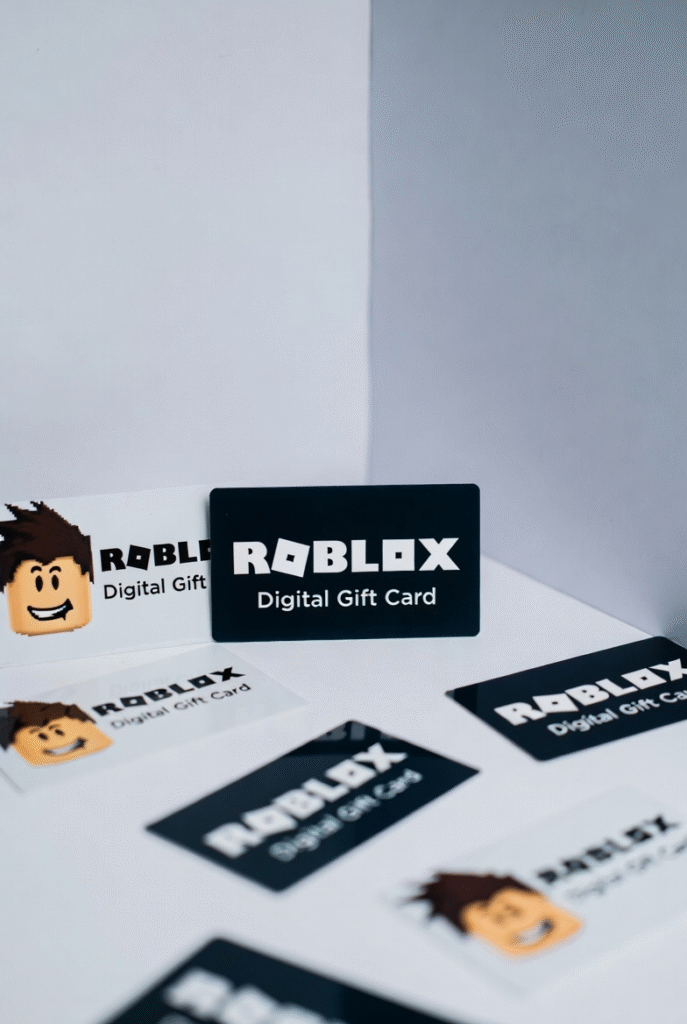
Robux Cards: These add a specific amount of Robux (Roblox’s virtual currency) directly to your account. Common denominations include 800, 1,700, 2,000, 4,500, and 10,000 Robux.
Premium Subscription Cards: These activate a Roblox Premium membership for a set duration (typically one month), which includes a monthly Robux stipend plus exclusive benefits like trading items and access to the Premium marketplace.
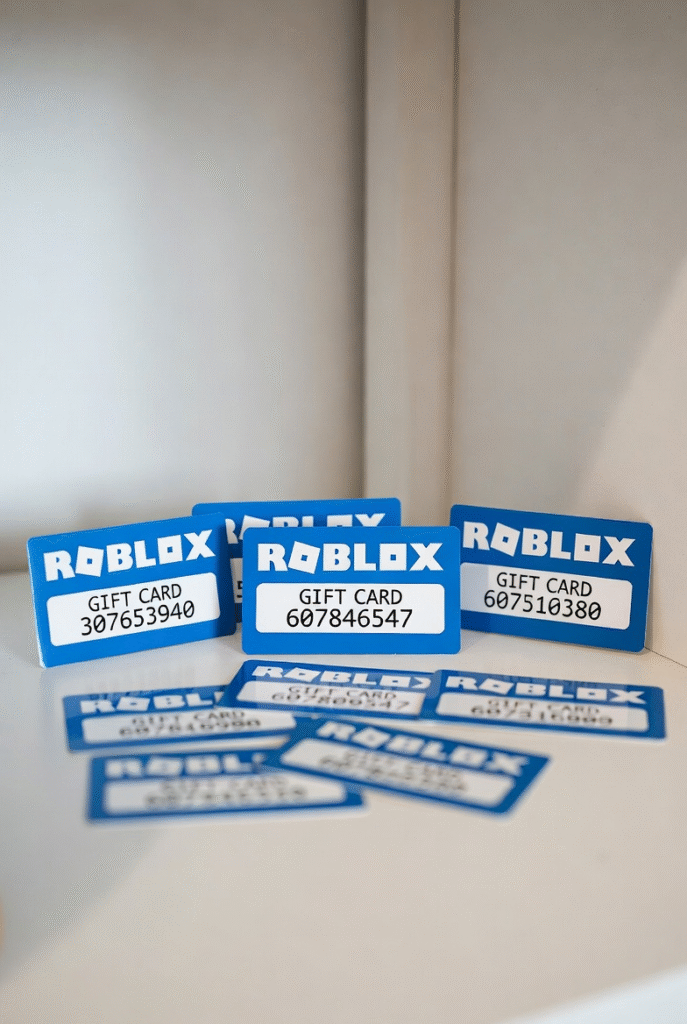
The redemption code is typically found on the back of a physical card (scratch off the protective coating) or delivered via email for digital purchases.
How to Redeem Roblox Gift Cards on PC/Web Browser
The web browser method is the most straightforward redemption process:
Step 1: Log Into Your Account
Visit [www.roblox.com](http://www.roblox.com) and sign in to your Roblox account. If you don’t have an account yet, you’ll need to create one first—the signup process only takes a few minutes.
Step 2: Navigate to the Redemption Page
Once logged in, go to the Roblox redemption page at [www.roblox.com/redeem](http://www.roblox.com/redeem). You can also access this by clicking your profile icon in the top-right corner, selecting “Gift Cards” from the dropdown menu.
Step 3: Enter Your Code
Carefully type or paste your redemption code into the text field. Roblox codes are case-sensitive and typically contain a mix of letters and numbers without spaces. Double-check for common mistakes like confusing “0” (zero) with “O” (letter O) or “1” (one) with “I” (letter i).
Step 4: Click Redeem
Click the green “Redeem” button. If successful, you’ll see a confirmation message showing what was added to your account—either Robux or a Premium subscription.
Step 5: Verify Your Balance
Check your Robux balance (displayed in the top-right corner of the screen) to confirm the currency was added. For Premium subscriptions, you’ll see a badge on your profile and can verify the subscription under Settings > Subscriptions.
How to Redeem on Mobile Devices (iOS/Android)
The mobile redemption process is slightly different but equally simple:
For iOS (iPhone/iPad):
1. Open the Roblox app and log into your account
2. Tap the three dots icon (•••) in the bottom-right corner
3. Select “Gift Cards” from the menu
4. Tap “Redeem Card”
5. Enter your code and tap “Redeem”
For Android:
1. Open the Roblox app and log in
2. Tap the three horizontal lines (hamburger menu) in the top-left
3. Select “Gift Cards”
4. Tap the “Redeem” button
5. Type in your code and confirm
Important Mobile Note: Some users report that the mobile redemption interface can be glitchy. If you encounter persistent errors on mobile, try using a web browser on your phone (navigate to roblox.com/redeem) or switch to a desktop computer.
How to Redeem on Xbox Console
Xbox users have a dedicated redemption path:
Step 1: Launch Roblox
Start the Roblox app on your Xbox console and sign into your account.
Step 2: Access the Menu
Press the menu button on your controller and navigate to the “Gift Cards” option.
Step 3: Enter Your Code
Use your controller to carefully input the redemption code. The Xbox interface can make this tedious, so take your time to avoid errors.
Step 4: Confirm Redemption
Select “Redeem” and wait for the confirmation message.
Alternative Xbox Method: You can also redeem Roblox codes through the Microsoft Store redemption system, though this only works for certain types of Roblox cards. The dedicated Roblox redemption page is generally more reliable.
Troubleshooting Common Redemption Errors
Even when following instructions perfectly, you might encounter errors. Here’s how to solve the most common issues:
“Invalid Code” Errors
This is the most frequent error message, and it usually stems from:
Human Input Errors: Recheck your code character by character. Common mistakes include:
– Confusing similar-looking characters (0/O, 1/I/l, 5/S, 8/B)
– Adding spaces before, after, or within the code
– Mixing up uppercase and lowercase letters
– Accidentally including part of the card’s serial number instead of the redemption code
Solution: Try copying and pasting the code if you received it digitally, or have someone else read the code aloud to verify you’re entering it correctly.
Region Restrictions
Roblox gift cards are region-locked and must match your account’s country setting.
The Problem: A gift card purchased in the United States won’t work on an account registered in the United Kingdom, for example.
Solution: Unfortunately, there’s no official way around legitimate region locks. If you have a gift card from the wrong region, you have two options:
– Create a new Roblox account in the matching region (not ideal if you have progress on your current account)
– Sell or trade the card to someone in the correct region
Already Redeemed Codes
If you see “This code has already been redeemed,” someone has already used the code—possibly you, if you forgot.
Solution:
– Check your Robux balance and transaction history (Profile > Settings > My Transactions) to see if you already redeemed it
– If you just purchased the card and it’s already redeemed, contact the retailer immediately—you may have received a stolen or used card
– For digital codes from third-party sellers, contact their support if the code was pre-used
Technical Server Issues
“Service temporarily unavailable” or similar messages indicate Roblox server problems.
Solution: Wait 30-60 minutes and try again. Check Roblox’s official Twitter or status page (status.roblox.com) to see if there’s a known outage. Don’t repeatedly attempt redemption, as this could temporarily lock your account from redemption attempts.
Account Age Restrictions
Some promotional codes or special gift cards have age restrictions.
Solution: Verify your account’s birthdate settings. If you need to update your birthdate, you’ll need to contact Roblox support with verification (this is a security measure to prevent children from changing their age).
Damaged Cards
Physical cards can be scratched or damaged, making codes illegible.
Solution:
– Try different lighting and angles to read the code
– Use a magnifying glass or your phone’s camera to zoom in
– Contact Roblox support with proof of purchase and photos of the card—they can sometimes help recover damaged codes
– If purchased from a retailer, bring the damaged card back for an exchange
Checking Your Gift Card Balance and Managing Codes
Verifying Your Robux Balance
After redemption, immediately verify your balance:
1. On Web/PC: Your Robux balance appears in the top-right corner next to your avatar icon
2. On Mobile: Open the app and check the balance displayed on the home screen
3. Detailed Transaction History: Go to Settings > My Transactions to see a complete log of Robux additions and purchases
Checking If a Code Is Already Redeemed
Unfortunately, Roblox doesn’t provide a way to check a code’s status without attempting to redeem it. If you’re unsure whether you’ve used a code:
– Check your email for redemption confirmation (Roblox sends these for most redemptions)
– Review your transaction history for the corresponding Robux amount
– Check the date you received the card against your account balance changes
Managing Multiple Gift Cards
If you have several gift cards to redeem:
1. Redeem them one at a time to avoid confusion
2. Keep a written record of which codes you’ve used
3. Store physical cards in a safe place until redeemed, then mark them as “USED”
4. Screenshot or photograph codes immediately upon receipt
What to Do With Unwanted Gift Cards
Received a Roblox gift card but don’t play the game? You have several options:
Gift to a Friend: The most straightforward solution is giving it to someone who plays Roblox
Sell for Cash: If you prefer cash instead of Robux, platforms like Xbankang allow you to sell unused gift cards instantly at competitive rates with fast payouts. This is particularly useful if you’ve received multiple cards or simply don’t play Roblox.
Trade Online: Various online communities facilitate gift card trades, though be cautious of scams
Pro Tips for Safe Gift Card Redemption
Protect Your Codes: Treat unredeemed gift card codes like cash. Never share them publicly or with people you don’t trust.
Redeem Immediately: Don’t wait months to redeem a card. Codes don’t expire, but cards can be lost, damaged, or stolen.
Screenshot Digital Codes: As soon as you receive a digital code via email, take a screenshot and save it in multiple locations.
Save Receipts: Keep purchase receipts until you’ve successfully redeemed the card and verified the balance.
Beware of Scams: Never give your gift card code to someone claiming they need it to “verify your account” or “unlock free Robux.” Roblox employees will never ask for your gift card codes.
Check the Source: Only purchase gift cards from authorized retailers. Third-party marketplace sellers sometimes sell already-used codes.
Final Thoughts
Redeeming a Roblox gift card should take less than two minutes when you know the process. Whether you’re on PC, mobile, or Xbox, the steps are straightforward: log in, navigate to the redemption page, enter your code, and confirm. Most redemption issues stem from simple typos or region mismatches that can be quickly resolved.
If you continue experiencing problems after trying these troubleshooting steps, contact Roblox Support through their help page at [roblox.com/support](http://roblox.com/support) with details about your issue, screenshots of error messages, and proof of purchase for the gift card.
Now that you know exactly how to redeem your Roblox gift cards, you’re ready to unlock your Robux and start customising your avatar, purchasing game passes, and enhancing your Roblox experience. Happy gaming!
Frequently Asked Questions
Q: Where do I find my Roblox gift card code?
A: On physical cards, scratch off the protective silver coating on the back to reveal the redemption code. For digital gift cards purchased online, the code is typically sent via email immediately after purchase or displayed on the confirmation screen.
Q: Can I redeem a Roblox gift card without an account?
A: No, you must have a Roblox account to redeem gift cards. However, creating an account is free and only takes a few minutes. Visit roblox.com, click ‘Sign Up,’ and follow the registration process before redeeming your card.
Q: Why does my Roblox code say it’s invalid?
A: Invalid code errors usually result from typos (confusing 0/O, 1/I), incorrect region (cards are region-locked), the code already being redeemed, or the code being entered with spaces. Double-check each character carefully and ensure the card matches your account’s country.
Q: Do Roblox gift card codes expire?
A: No, Roblox gift card codes do not have expiration dates. However, it’s best to redeem them promptly to avoid losing the physical card or having the code become illegible from wear and tear.
Q: Can I redeem a Roblox gift card from another country?
A: No, Roblox gift cards are region-locked and must match your account’s registered country. A US gift card won’t work on a UK account, for example. If you have a card from the wrong region, you can sell it or gift it to someone in the matching region.
Q: How do I check if my Roblox gift card has already been used?
A: Roblox doesn’t provide a way to check a code’s status without attempting redemption. Check your email for redemption confirmations or review your transaction history (Settings > My Transactions) to see if the corresponding Robux amount was added to your account.
Q: What should I do if I scratch off my gift card code by accident?
A: If the code is partially damaged, try using good lighting, a magnifying glass, or your phone’s camera zoom to read it. If completely illegible, contact Roblox Support with photos of the card and proof of purchase—they may be able to help. The retailer may also exchange damaged cards.
Q: Can I transfer Robux from one account to another after redeeming a gift card?
A: You cannot directly transfer Robux between accounts. However, Premium members can use the group payout system or trade limited items as indirect methods. The Robux from a redeemed gift card stays on the account where it was redeemed.